Setup
Back up your world project before importing.
1. Import the package
-
Open Unity and open the world project you want to add this to.
-
Extract the
KnollCore_CocktailSystem_v〇〇〇.zipfile you downloaded from Booth. -
Double-click the
CocktailSystem_v〇〇〇.unitypackagefile inside the extracted folder. -
The import dialog opens automatically. Make sure every file is selected, then click Import.
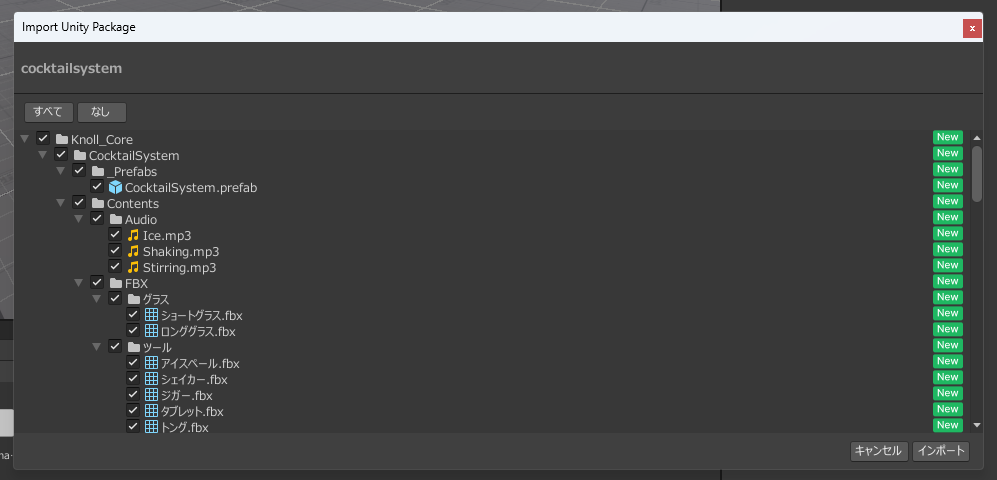
You can also choose Assets > Import Package > Custom Package... from the menu bar, then select the unitypackage.
2. Place the Prefab
The only included Prefab is CocktailSystem. Bottles, glasses, and tools are already inside it.
-
In the Project window, open these folders in order:
Assets>Knoll_Core>CocktailSystem>_Prefabs
-
Confirm the
CocktailSystemPrefab in_Prefabs.
-
Drag the
CocktailSystemPrefab from the Project window into the Hierarchy. -
The first time you use TextMesh Pro in a project, placing the Prefab opens the TMP Importer window. Click Import TMP Essentials. Without this, recipe and rating UI text will not appear.
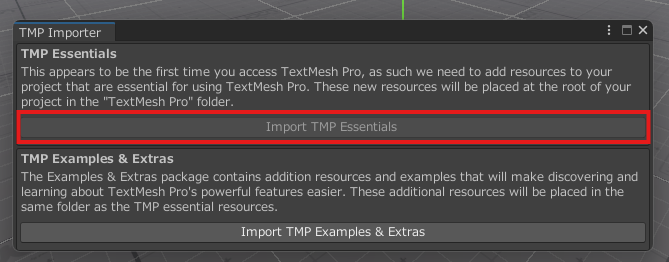
- Import TMP Examples & Extras is not needed.
- If TextMesh Pro is already imported, this window does not appear.
-
Adjust the Prefab position in the Scene view.
- Use Transform to change position, rotation, and scale as needed.
- You can also move bottles and glasses inside the Prefab individually from the Hierarchy.
If you place more than one CocktailSystem Prefab, SystemManager is duplicated and the system will not work correctly. To add extra objects, duplicate children using the steps below.
Placing extras
If you want more glasses or bottles, do not add standalone Prefabs. Duplicate objects that are already in the scene. The SystemManager references are copied with them.
-
Expand
CocktailSystemin the Hierarchy and select the object you want more of (for example Short Glass or Jigger). -
Duplicate with
Ctrl + D, or copy and paste. -
Move the duplicate to the position you want in the Scene view.
You can delete unused bottles and tools, or disable them. If you need one later, duplicate a remaining object of the same type.
3. Check that it works
-
Click Play at the top of the Unity Editor.
-
Confirm these behaviors:
- Hold a bottle and press Use to open or close the cap
- Tilt an open bottle to pour
- Pouring into the jigger fills it up to the selected side's volume
- Tilt the jigger to pour into a glass or an open shaker
- Put tongs into the ice bucket to pick up ice, then into a glass or open shaker to add it
- Put a muddler into a glass and move it to stir; removing it shows the rating
- The shaker cycles Open → Shake → Pour with Use
- Hold a filled glass and press Use to drink
- The tablet shows the recipe list
-
If all of that works, setup is complete. See How to play for the full flow.